Legal
How to Compare Two PDF Files for Differences (Without Acrobat Pro)
Compare two PDFs and see every text change, added paragraph, and removed clause — free, in your browser, with nothing uploaded to a server.
PDFs are where document changes go to hide. The format is designed to look identical everywhere, which is great for sharing and terrible for spotting edits. Two contracts, two reports, two proposals — they render the same, and the one changed number or deleted sentence is invisible until it costs you. Here's how to compare two PDFs properly, including the scanned ones that most tools choke on.
The fastest way: a browser-based PDF diff
- Open the Compare PDFs tool.
- Drop the original PDF on the left and the revised PDF on the right.
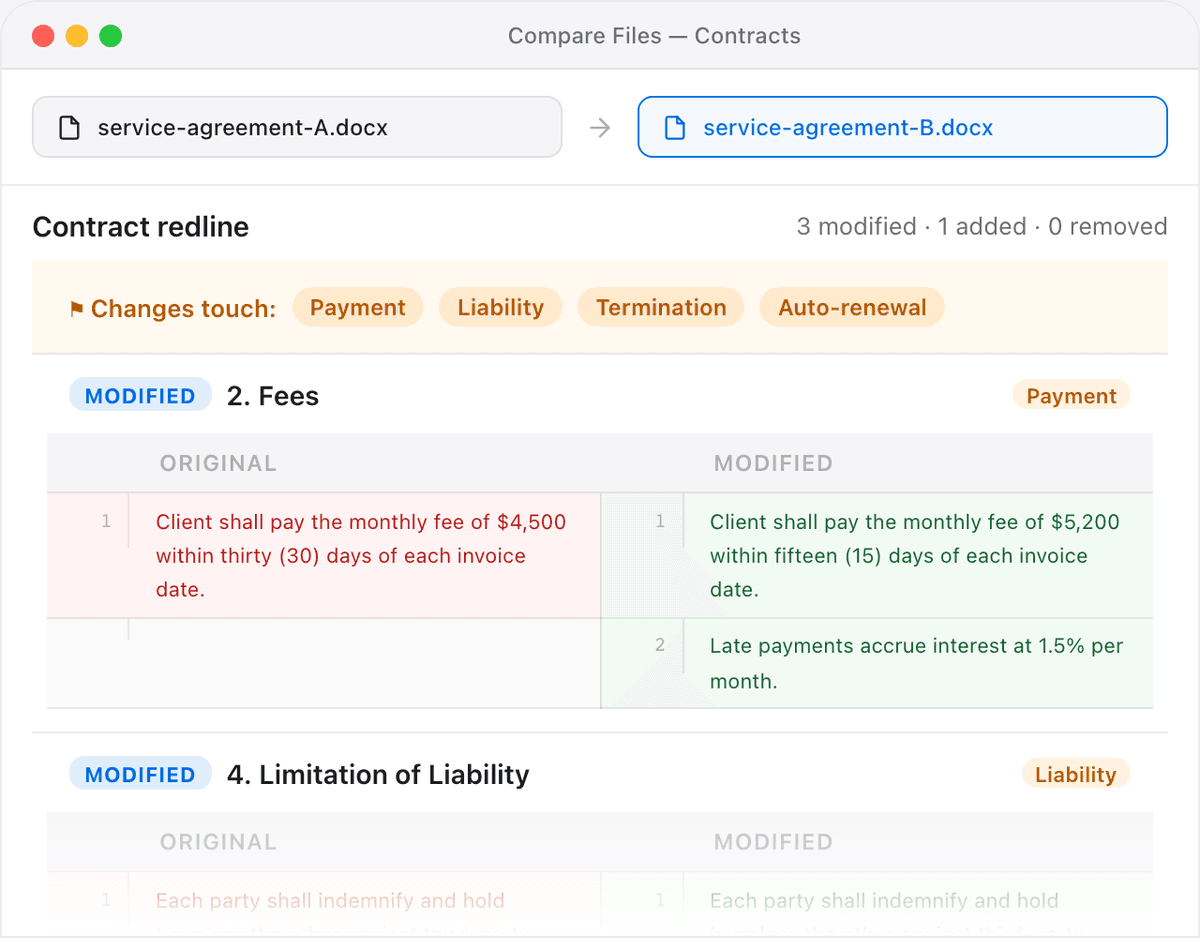
- Read the highlighted result: additions in green, deletions struck through, and reworded passages showing the exact changed words.
Because the comparison is on the text content rather than the visual layout, it ignores cosmetic differences — a re-exported PDF with new margins but identical wording shows as unchanged, so you only look at edits that actually matter.
Scanned PDFs with no text layer
Not every PDF contains selectable text. Scans, faxes, and signed documents are often just images wrapped in a PDF — there's no text to diff, so a normal comparison returns nothing. The fix is OCR (optical character recognition): recognise the text in the image first, then compare.
Use the document text extractor to pull the text out of each scanned PDF (it runs OCR when there's no text layer), then compare the two extracts. This turns an "impossible" scanned-document comparison into an ordinary text diff.
Tip: OCR is never perfect on low-quality scans, so treat a handful of single-character differences as likely recognition noise rather than real edits. Genuine changes show up as whole words or numbers, not stray letters.
Why not Acrobat Pro?
Adobe Acrobat Pro has a solid Compare Files feature — if you pay for it. For an occasional check it's an expensive subscription to open, install, and learn. A browser tool does the same job for the 90% case with nothing to install, and it works the same on Windows, Mac, Linux, and Chromebooks.
Privacy matters here more than usual: contracts and reports are exactly the documents you don't want sitting on someone else's server. Everything in these tools runs locally — the PDF is never uploaded.
When to reach for a page-by-page visual diff instead
Text comparison is the right default, but sometimes the change is visual — a moved logo, a reformatted table, a stamp. When you care about how the page looks rather than what it says, export each PDF page to an image and use the image comparison tool, which highlights exactly which pixels differ between two versions.
For regular document review — contracts, NDAs, policies — the legal comparison tools bundle PDF, DOCX, and contract-specific diffs into the same private workflow.
Comparing a PDF against a Word document
A frequent snag is that the two versions aren't the same file type: you have the original as a.docx and the counterparty returned a PDF. Most desktop comparison tools refuse to cross formats, forcing you to convert one file and hope the conversion doesn't introduce its own differences. Because a browser diff works on extracted text, you can load a PDF on one side and a Word document on the other and compare them directly. If you're reviewing legal paperwork this way, the document comparison tool and the contract comparison tool both accept mixed PDF and DOCX input.
Getting a clean, meaningful diff
A few habits make the result far easier to read:
- Put the older or agreed version on the left and the newer one on the right, consistently — otherwise every insertion reads as a deletion and vice versa.
- If a PDF was exported from a different program, expect harmless whitespace and line-break shifts; a text-content diff already collapses most of these, but skim past them rather than treating them as edits.
- For long documents, work heading by heading. Jumping straight to the sections that carry numbers, dates, and obligations catches the changes that matter fastest.
- When a passage shows as fully rewritten, read the highlighted words rather than the whole paragraph — the tool marks exactly which terms changed.
Why this beats a manual side-by-side: reading two PDFs in split-screen relies on you noticing a single altered digit or a dropped "not". People miss those every day. A diff can't get bored, so the one change that inverts a clause's meaning gets flagged the same as any other.
Frequently asked questions
How do I compare two PDF files for free?
Open the Compare PDFs tool, drop one file on each side, and read the highlighted differences. It's free to try, and because the PDFs are read locally in your browser there's no upload, no account, and no watermark on the result.
Can I compare two PDFs without Adobe Acrobat?
Yes. Acrobat Pro's Compare Files feature is good but requires a paid subscription and a desktop install. A browser-based diff covers the everyday case — spotting changed text between two versions — with nothing to install and identical behaviour on Windows, macOS, Linux, and Chromebooks.
How do I compare scanned PDFs that have no selectable text?
Run each scan through the text extractor first, which applies OCR to image-only pages, then compare the two extracted texts. Treat isolated single-character differences as likely OCR noise rather than genuine edits.
Are my PDFs uploaded anywhere when I compare them?
No. The comparison runs entirely in your browser using local JavaScript. The file never leaves your device, which is why this approach suits confidential contracts, reports, and financial documents.
What if the difference is visual rather than in the text?
Export the affected pages to images and use the image comparison tool to highlight the exact pixels that differ — useful for moved logos, reformatted tables, or stamps that text comparison won't catch.