Finance
Excel Reconciliation: 5 Ways to Find Differences Between Two Sheets
From helper-column formulas to key-based row matching, five ways to reconcile two spreadsheets and find every changed cell, added row, and removed line — ranked worst to best.
Reconciliation is the unglamorous heart of finance work: two versions of the truth that are supposed to agree, and your job is to find every place they don't. A system export versus a bank statement. This month's ledger versus last month's. The vendor's figures versus yours. Doing it by eye is hopeless, and the "official" Excel methods range from fiddly to hidden behind a license. Here are five ways to find the differences between two sheets, from worst to best.
1. Side-by-side, by eye (don't)
Opening both files in two windows and scrolling in parallel is how most people start and how most people miss things. A single transposed digit in a column of hundreds of rows is invisible to human attention after the first few minutes. This "method" is really just a way to feel like you checked. Use it only for a five-row sheet you could verify on a napkin.
2. A helper column with a cell-by-cell formula
The classic spreadsheet trick: on a third sheet, write =IF(Sheet1!A1<>Sheet2!A1, "DIFF", "") and fill it across the whole grid. It works, and it's free, but it has a hard limitation: it compares by position. If a single row was inserted or deleted, every row below shifts and the formula reports thousands of false differences. It also assumes both sheets have identical layout, which reconciliations rarely do.
The core problem with formulas: they match cells by grid position, but real reconciliation needs to match rows by a key — an invoice number, a SKU, an account code — so that a reordered or newly inserted row is understood, not flagged as a wall of changes.
3. VLOOKUP / XLOOKUP to match by key
The step up is to stop comparing by position and match by a unique identifier. Use XLOOKUP (or VLOOKUP) to pull each row's value from the other sheet by its key, then compare. This handles reordering and catches rows present in one sheet but missing from the other (they return an error you can trap with IFERROR). It's the right idea — match by key, not by row number — but it's laborious to set up per column, easy to get wrong, and it clutters your workbook with lookup scaffolding you then have to clean up.
4. Excel's own compare tools (Inquire / Spreadsheet Compare)
Microsoft ships a real diff tool called Spreadsheet Compare, driven by the Inquire add-in. It's genuinely capable — it shows entered-value, formula, and formatting changes in a colour-coded grid. The catch: it's only available in specific Office Professional Plus / Microsoft 365 editions, it's Windows-only, and many people don't have it and can't easily get it. If it's on your machine, use it. If it isn't, you're back to formulas — or option five.
5. A browser-based spreadsheet diff that matches by key
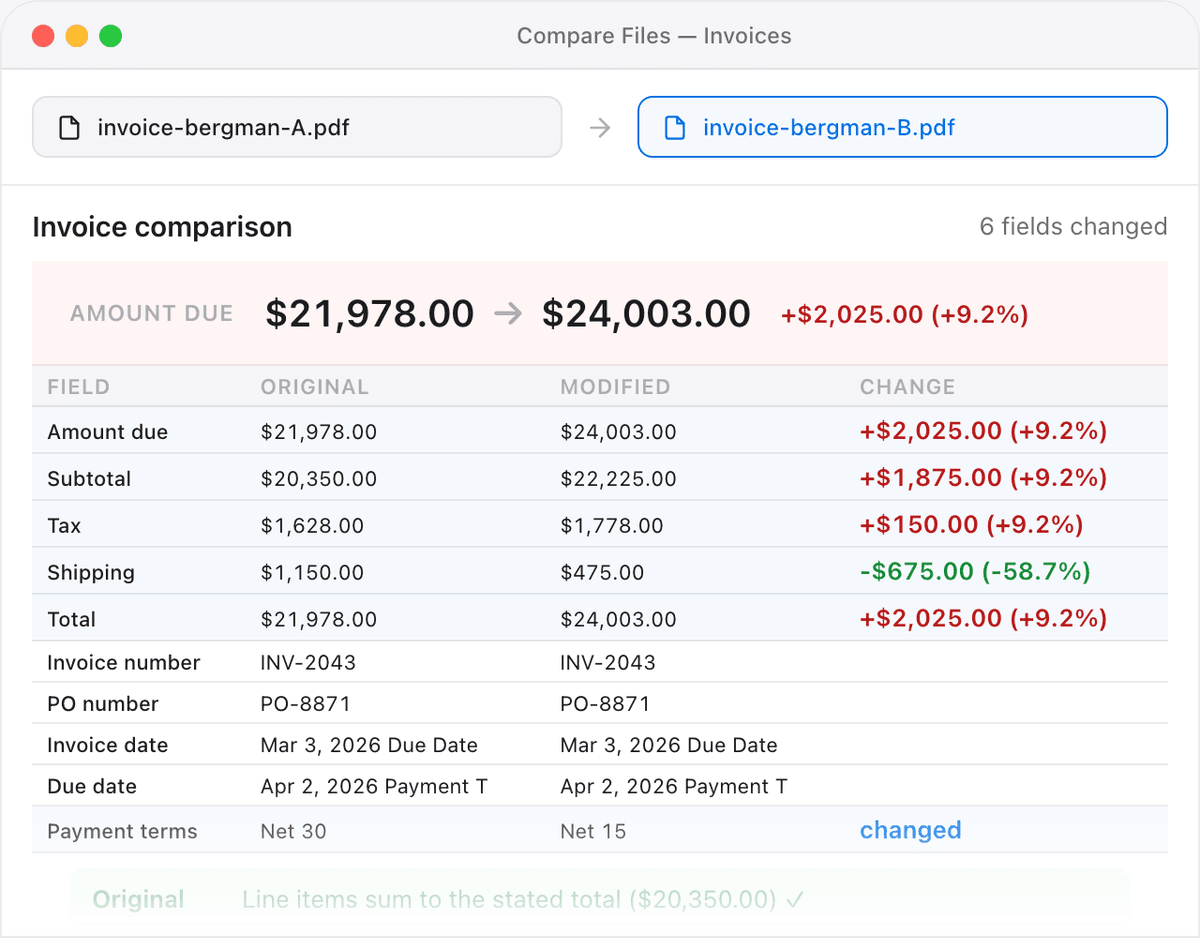
The fastest reliable option needs no add-in, no formulas, and no matching Office edition. Open the spreadsheet comparison tool, load both files (CSV, XLSX, or XLS), and it matches rows by a key column rather than by position — so inserted, deleted, and reordered rows are understood correctly. You get a clean list of changed cells, added rows, and removed rows, without building any scaffolding.
- Open the Compare Spreadsheets tool.
- Load the original export on the left and the version you're reconciling against on the right.
- Point it at the key column (invoice number, SKU, account code) so rows are matched by identity, not row number.
- Read the result: changed cells highlighted, rows only in one file flagged as added or removed.
Financial exports contain exactly the data you don't want on a stranger's server — account numbers, salaries, client names. This tool runs entirely in your browser, so the spreadsheets are read and compared locally and never uploaded. If you want to confirm that, our guide on verifying a web app never uploads your files shows how to watch the network traffic during a comparison.
Which method should you use?
For a quick, one-off, well-behaved comparison where nothing was reordered, a helper-column formula is fine. For anything real — where rows move, get inserted, or need matching by an ID — skip straight to key-based matching, whether that's XLOOKUP scaffolding, Spreadsheet Compare (if you have it), or an in-browser diff. For the full walkthrough of the browser approach, see our companion guide on comparing two Excel files for differences. And when the numbers you're reconciling come off invoices, our post on comparing invoices before payment covers that specific case. Finance teams can find every comparator in one place on the finance tools page.
Frequently asked questions
How do I find differences between two Excel sheets?
Match the rows by a key column (like an invoice number or SKU) rather than by position, then compare the matched values. You can do this with XLOOKUP formulas, Microsoft's Spreadsheet Compare add-in, or a browser-based spreadsheet diff that does the key matching for you and highlights every changed cell.
Why does my IF-formula comparison show thousands of differences?
Because IF formulas compare cells by grid position. If a single row was inserted or deleted, every row below it shifts by one, so the formula reports a difference on nearly every line. The fix is to match rows by a unique key instead of by row number.
Can I compare two Excel files without the Inquire add-in?
Yes. Spreadsheet Compare / Inquire is only in certain Windows Office editions. A browser-based spreadsheet comparison tool works on any operating system with no add-in — load both files and it highlights changed cells and added or removed rows directly.
How do I reconcile two sheets when rows are in a different order?
Use key-based matching. Choose a column that uniquely identifies each row, and match rows by that value rather than by their position in the file. Then a reordered row is recognised as the same record, and only genuine value changes are flagged.
Is it safe to compare financial spreadsheets online?
Only with a tool that processes files locally. An in-browser comparator like this one reads and diffs both spreadsheets on your own device and never uploads them, so sensitive figures like salaries and account numbers never reach a server.