Legal
How to Compare Two Word Documents Without Track Changes
Track Changes missing, accepted, or stripped out? Compare two .docx files by their actual text and see every insertion, deletion, and edit — free, in your browser.
Track Changes is supposed to be the record of what changed in a Word document. In practice it fails you constantly: the other side sent a clean copy, someone accepted all changes before forwarding, or the revision came back as a PDF. Now you're staring at two files that look almost identical and you have to find the one clause that moved. Here's how to compare two Word documents when Track Changes isn't there to help — and why you rarely need Word at all.
Why Track Changes lets you down
Track Changes only records edits made with tracking turned on, inside Word, by someone who chose to leave it on. Any of these breaks the chain:
- The counterparty edited with tracking off, then turned it on again — those first edits are invisible.
- Someone clicked "Accept All Changes" to tidy up before sending, erasing the history.
- The document was saved as a PDF, flattened, or opened in Google Docs and re-exported.
- Two people worked on separate copies and you need to reconcile both against the original.
In every one of these cases the honest answer to "what changed?" comes from comparing the actual text of the two files — not from trusting a markup layer that may be incomplete or missing.
The fastest way: a browser-based document diff
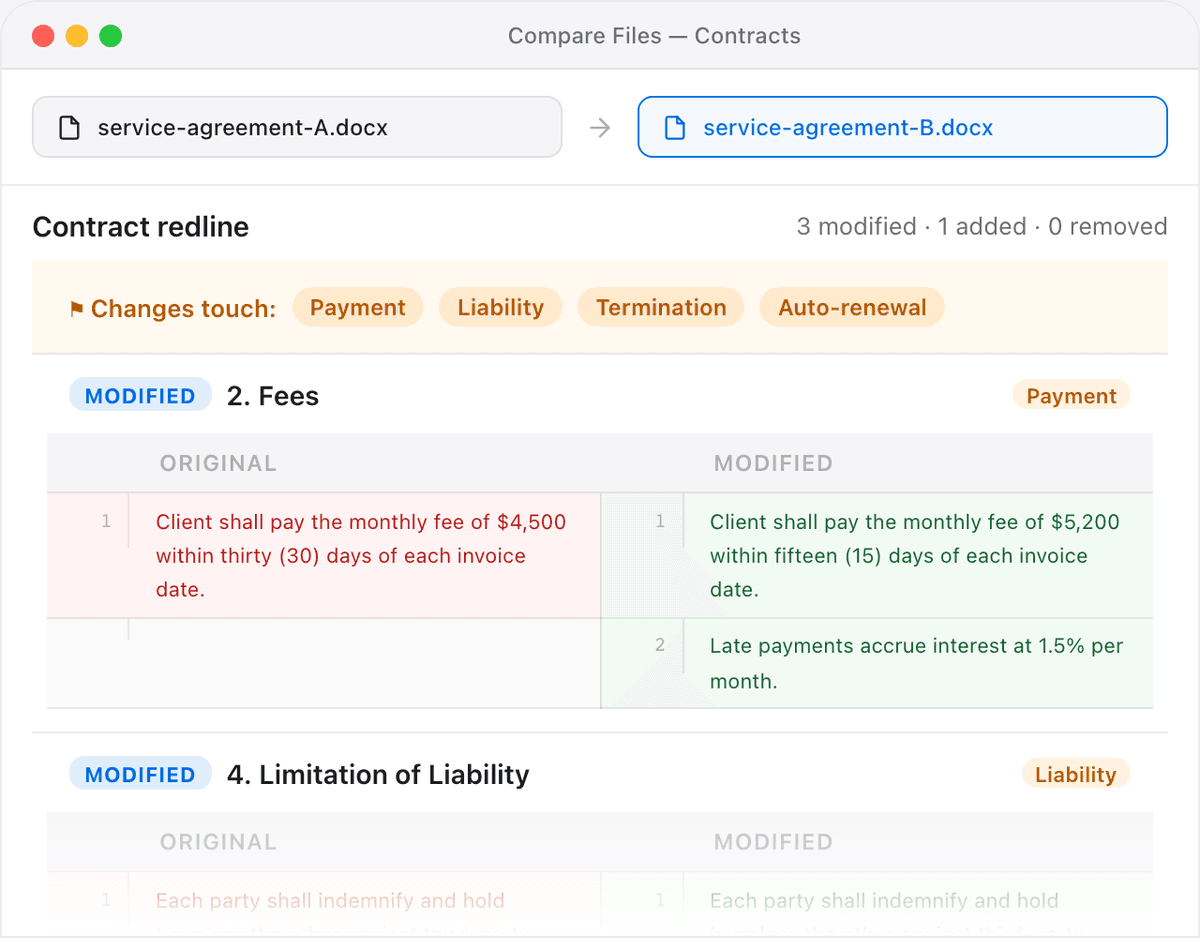
You don't need to install Word, match file formats, or turn anything on. Open the document comparison tool, drop the original .docx on the left and the revised one on the right, and read the highlighted result: additions in green, deletions struck through, and reworded sentences showing the exact words that changed.
- Open the Compare Documents tool.
- Load the original on the left and the revised version on the right (.docx, .doc, .pdf, or plain text — they don't have to match).
- Scan the highlighted diff. Every insertion, deletion, and edited passage is marked in place.
Because the comparison works on the text content, it doesn't care whether one file is a Word doc and the other is a PDF export of it. That solves the most annoying real-world case: the counterparty who "just sent a PDF for reference" while the negotiating copy stays in Word.
Tip: For contract-specific review — where you care about clause numbering and defined terms — use the dedicated contract comparison tool, which is tuned for the structure of legal agreements. See also our guide on comparing contracts without Microsoft Word.
Comparing against a version with no digital original
Sometimes the "original" only exists as a scan or a signed PDF — there's no clean .docx to diff against. As long as the document has a text layer, the comparison tool reads it directly. If it's a pure image scan with no selectable text, pull the text out first with the contract text extractor (it runs OCR when there's no text layer), then compare the two extracts as ordinary text.
Privacy matters more than usual with legal documents. A draft agreement is exactly the kind of file you don't want sitting on a stranger's server. Everything here runs locally in your browser — the documents are never uploaded.
Why not just use Word's Compare feature?
Word's Review → Compare is genuinely good when it works. But it requires a licensed desktop copy of Word, both files in a format Word can open, and a bit of patience with its dialog boxes. For a quick check — or when you're on a Mac, a Chromebook, or someone else's machine — a browser tool does the same job with nothing to install and no format wrangling. It also handles the mixed-format case (Word vs. PDF) that Word's own Compare can't.
For everyday legal review — NDAs, MSAs, policies, statements of work — the legal comparison tools bundle document, PDF, and contract diffs into one private workflow, so you're not switching apps depending on what format the file arrived in.
Frequently asked questions
How do I compare two Word documents without Track Changes?
Load both files into a document comparison tool that diffs the underlying text. It reconstructs every insertion and deletion from the content itself, so you get an accurate change list even when Track Changes was off, accepted, or stripped out entirely.
Can I compare a Word document to a PDF of it?
Yes. A text-based document diff reads the words from each file regardless of format, so a .docx on one side and a .pdf on the other compare cleanly. That's the usual workaround when the counterparty sends a "reference" PDF instead of an editable copy.
Will it detect changes if the other side accepted all changes before sending?
Yes — that's exactly the case it's built for. Since the comparison is between the two documents' text, it doesn't rely on any tracked-changes markup surviving. Accepting all changes hides the history in Word, but the difference is still there in the words, and the diff finds it.
Is it safe to compare confidential documents this way?
With an in-browser tool like this one, yes. The files are read and compared locally on your own device and never uploaded to a server, so there's no copy of your confidential draft sitting anywhere else.
Do both files have to be the same format?
No. You can mix .docx, .doc, .pdf, and plain text on either side. The tool compares the text, not the container, so format mismatches that trip up Word's built-in Compare aren't a problem here.